
Administrators and users with appropriate permissions
Clinical Events allow organizations to track important health and clinical information for Individuals receiving services. Common examples include seizures, fluid intake, blood pressure, weight, sleep, bowel movements, and other health-related observations.
Because each organization has different documentation requirements, SETWorks allows administrators to configure their own Clinical Event Types, including the information staff need to record, required fields, and where documentation is available.
For example, an organization may want staff to document fluid intake throughout the day, track seizure activity, or regularly record an Individual's weight. Each of these can be configured as a separate Clinical Event Type with its own fields and documentation requirements.
Clinical Events consist of two primary components:
- Clinical Events Utility: Where administrators create and configure Clinical Event Types, fields, settings, and access.
- Individual Clinical Events: Where staff assign Clinical Event Types to Individuals, record observations, review historical entries, and schedule recurring documentation.
Clinical Events can also be incorporated directly into Activity Records, allowing staff to document clinical information while recording services.
For instructions on recording and managing Clinical Events for an Individual, see [How to Record and Manage Clinical Events in New SETWorks — link coming soon].
What Are Clinical Event Types?Clinical Event Types define the information your organization wants to collect for a particular clinical observation or activity.
Each Clinical Event Type has its own configurable fields and settings. This allows organizations to standardize how information is collected while accommodating the different needs of their programs and Individuals.
For example:
| Clinical Event Type | Example Information Collected |
|---|---|
| Fluid Intake | Date, Time, Fluid Type, Amount (oz) |
| Seizure | Date, Time, Duration, Seizure Type, Notes |
| Weight | Date, Time, Weight (lbs) |
| Blood Pressure | Date, Time, Systolic, Diastolic |
| Sleep | Date, Bedtime, Wake Time, Hours Slept |
These are examples only. Your organization can create and customize Clinical Event Types to match its documentation requirements.
Once configured, Clinical Event Types can be assigned to Individuals and used by staff to record information consistently.
How to Access the Clinical Events Utility- From the main navigation menu, select Utilities.
- Open the utility selection dropdown.
- Select Clinical Events Utility.
- The utility displays your organization's configured Clinical Event Types, where you can create new types or manage existing configurations.
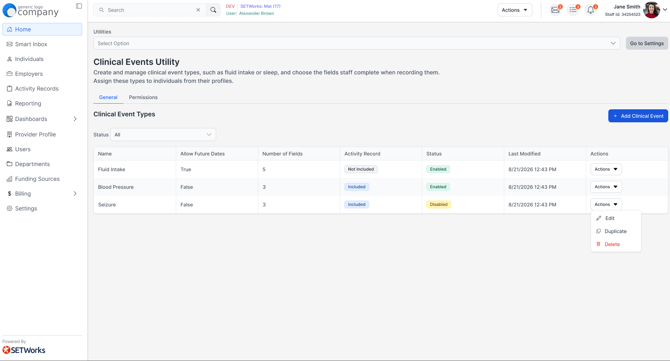
To create a new Clinical Event Type:
- Open the Clinical Events Utility.
- Select the option to add a new Clinical Event Type.
- Enter a name that clearly describes the information being collected, such as Fluid Intake, Seizure, or Weight.
- Configure the documentation fields and settings for the new type.
- Save the Clinical Event Type.
Once enabled, the Clinical Event Type can be assigned to Individuals for documentation.
Configuring Documentation Fields
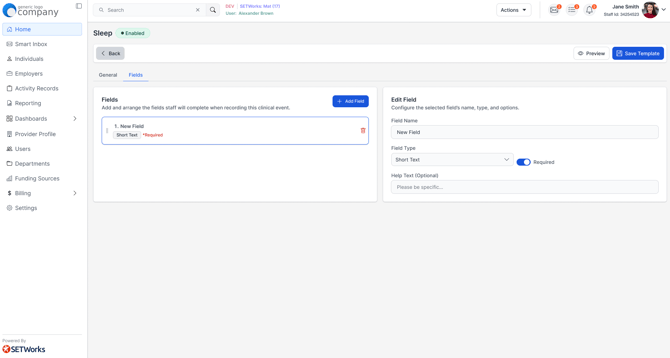
Each Clinical Event Type can include multiple fields that determine what information staff will record.
Administrators can select from a variety of field types, including:
- Text: Capture free-text information, such as observations or notes.
- Number: Record numeric values, such as weight, fluid intake, or seizure duration.
- Date: Capture a date associated with the observation.
- Dropdown: Allow staff to select from predefined options, such as seizure type or fluid type.
- Yes/No: Capture a simple binary response.
- File or Image: Include supporting attachments where supported by the field configuration.
For each field, administrators can configure properties such as:
- Field Label: The name displayed to staff.
- Required: Whether staff must complete the field when documenting the event.
- Display Order: The sequence in which fields appear.
- Units: Where applicable, specify the unit of measurement, such as ounces, pounds, or minutes.
- Dropdown Options: Define the available responses for selection fields.
For example, a Fluid Intake Clinical Event Type might include a required numeric field labeled Amount, with the unit oz, and a dropdown labeled Fluid Type with options such as Water, Juice, and Other.
Additional Clinical Event Settings
Administrators can also configure settings that control how a Clinical Event Type is used.
Enable or Disable Clinical Event Types
Control whether a Clinical Event Type is available for use. This allows organizations to manage which types are available to staff without necessarily removing the configuration.
Allow Future Dates
Determine whether staff can enter Clinical Events with dates in the future.
For example, an organization may choose to prevent staff from recording clinical observations before they occur.
Activity Record Integration
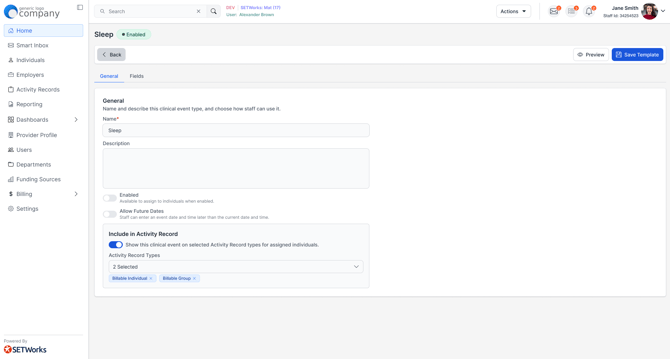
Clinical Event Types can optionally be made available within selected Activity Record templates. This allows staff to record clinical observations as part of their regular service documentation workflow.
See the next section for details.
Making Clinical Events Available in Activity RecordsIn addition to the Individual's Clinical Events section, administrators can make a Clinical Event Type available within specific Activity Record templates.
This can help simplify documentation by allowing staff to record clinical information while completing an Activity Record, without navigating to a separate screen.
For example, an organization may want staff to document Fluid Intake or Bowel Movements as part of a Residential Activity Record.
To configure this:
- Open the Clinical Event Type in the Clinical Events Utility.
- Locate the setting for including the Clinical Event Type in Activity Records.
- Enable the option.
- Select the Activity Record templates where the Clinical Event Type should be available.
- Save your changes.
When staff use one of the selected Activity Record templates, they can record the associated Clinical Event directly from the Activity Record in the user workflow.
Once saved, the Clinical Event will also appear in the Individual's Clinical Events history, keeping documentation accessible from the Individual's profile.
Note: Clinical Event documentation entered through an Activity Record is associated with the Individual and can be reviewed in their Clinical Events section.
Managing Existing Clinical Event TypesAdministrators can return to the Clinical Events Utility to manage previously configured types.
Depending on the changes needed, administrators can:
- Edit field labels, field types, and other configuration settings.
- Add or modify documentation fields.
- Change which fields are required.
- Update dropdown options or units of measurement.
- Change whether future dates are allowed.
- Update Activity Record template assignments.
- Enable or disable a Clinical Event Type.
The configuration also supports maintaining historical versions so previously recorded events remain associated with the appropriate configuration for reporting and historical review.
Note: Before making significant changes to a Clinical Event Type that staff already use, consider how those changes may affect future documentation and historical reporting.
Clinical Events PermissionsClinical Events use permissions to control which users can access and manage clinical documentation.
Organizations can configure permissions independently based on staff responsibilities.
| Permission | Description |
|---|---|
| View Clinical Events | Allows users to view Clinical Events recorded for an Individual. |
| Create Clinical Events | Allows users to record new Clinical Events. |
| Edit Clinical Events | Allows users to modify existing Clinical Event records. |
| Schedule Clinical Events | Allows users to configure recurring Clinical Event schedules. |
| Archive Clinical Events | Allows authorized users to archive Clinical Events. |
These permissions help organizations provide staff with appropriate access based on their roles.
For example, a direct support professional may need permission to view and record Clinical Events, while a supervisor may also need permission to edit records or manage recurring schedules.
If a user cannot access a Clinical Event or complete a particular action, an administrator should review their assigned permissions.
How Staff Use Clinical EventsAfter an administrator creates and enables a Clinical Event Type, it can be assigned to an Individual.
Staff can then access that Individual's Clinical Events section to:
- View the Clinical Event Types assigned to the Individual.
- Record new observations using the configured fields.
- Review historical Clinical Event entries.
- Edit existing records, depending on permissions.
- Set up recurring Clinical Event schedules, where permitted.
Recurring schedules can help organizations manage documentation that needs to occur regularly, such as daily fluid intake, weekly weight measurements, or other scheduled health observations.
When a recurring Clinical Event is due, SETWorks can generate a Task for the assigned staff. Completing the Clinical Event documentation also completes the corresponding Task.
Here is a Video Demo walking you through the end to end setup.
https://www.loom.com/share/4641db1dcaa643c8910b7e0c838f3b12
Frequently Asked QuestionsWho can create or configure Clinical Event Types?
Administrators and users with the appropriate utility access can configure Clinical Event Types. Access to recording, editing, scheduling, and archiving Clinical Events is managed through separate permissions.
Can our organization create its own Clinical Event Types?
Yes. Clinical Event Types are configurable, allowing organizations to create the types and documentation fields that match their requirements. You are not limited to a predefined list of clinical observations.
Can different Clinical Event Types have different fields?
Yes. Each Clinical Event Type has its own configuration. For example, a Weight Clinical Event might require a numeric weight field, while a Seizure Clinical Event might include dropdowns, duration, and observation notes.
Can we require staff to complete certain fields?
Yes. Administrators can designate fields as required when configuring a Clinical Event Type.
Can Clinical Events be documented directly within Activity Records?
Yes. Administrators can configure individual Clinical Event Types to appear within selected Activity Record templates. Staff can then document the Clinical Event as part of their normal service documentation workflow.
Do all Individuals need to use the same Clinical Event Types?
No. Clinical Event Types are created at the organizational level but can be assigned to Individuals based on their specific needs. An Individual only needs the Clinical Event Types relevant to their documentation requirements.
Can staff schedule Clinical Events to occur regularly?
Yes. Users with scheduling permission can configure recurring Clinical Events for an Individual, including daily, weekly, monthly, or custom schedules. SETWorks creates Tasks to remind assigned staff when documentation is due.
Recurring schedules are configured through the Individual's Clinical Events workflow rather than the Clinical Events Utility.
What happens when we modify an existing Clinical Event Type?
Changes to a Clinical Event Type affect its configuration for subsequent documentation. Clinical Events are designed to preserve historical configuration versions so previously recorded information can remain accessible and consistent for reporting.